
Introduction#
When you establish a homelab and start to use it to replace services that you previously rented from cloud providers, you have to wrestle with the concept of security. To a degree, you were able to rely on those cloud providers to provide all of the safeguards that you needed, but when you’re hosting those services yourself, you have to do the security yourself too.
To be sure, security isn’t sexy, and usually not a lot of fun either. But it’s simply not something you can put aside.
This article is absolutely not a “how to” kind of article at all. Rather, I’m trying to explain the concepts that you need to understand in order to make intelligent decisions about your own homelab security.
This means that we have to start with the basics. Basics that are more about the network traffic itself before we can even start to talk about security.
The Illusion of Connectivity#
The first and most important thing to understand about how the Internet works is that you don’t actually “connect” to anything.
I know that when you log into a website like YouTube and watch a video, it really feels like you’ve established a concrete connection to YouTube and the video stream runs down that connection. It makes the Internet feel like it works like an old-time switchboard, with virtual cables connecting you to remote sites.

But that is not how the Internet and network communications work. You are better off thinking about it as a really, really high speed postal system that delivers postcards.
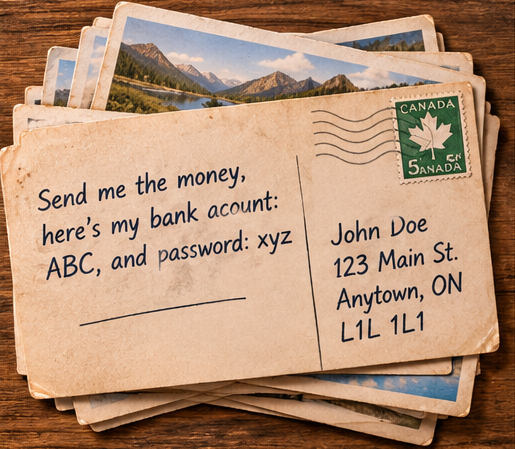
All network traffic is divided into something called “packets”. Each packet has an address and a data payload. Just like the postcard, it’s all just written there for everyone to see.
You drop off your postcard in the mailbox and it’s picked up and sent to some central station. It’s sorted and they figure out where to send it next, maybe it’s another, bigger, central station, or maybe it’s handed off to the postal service in another country. It goes through as many hops as it needs, with each handler examining the address and deciding where it needs to be sent next in order to get it to the correct address.
And the Internet works exactly the same way. The data that you want to send is carved up into packets roughly 1500 bytes long. Each packet contains a header that has the destination address in it. Your computer has information about how to send packets to various places, and it figures out what computer to pass it to based on that. That computer, in turn, has its own rules about how it routes packets, and it will send it to the next computer on the way to each packet’s destination. It goes on and on like that until it gets to the destination.
You may have noticed that anybody in mail delivery system can read that postcard. The same is true of Internet traffic. This is why most websites now use SSL to encrypt traffic. Now your postcard looks like this:

The address is still in plain text, because the delivery system needs to be able to read that. But the private stuff in the content can now only be read by the intended recipient.
What About Connections?#
When you watch a video on YouTube, you actually start a pen-pal type relationship with YouTube.
This is how YouTube sends you the data for the stream:
The first data in the stream is carved up into ~1500 byte chunks and put into packets. The data for each chunk contains some kind of sequencing information, because there is no guarantee that chunk #1000 is going to be delivered before chunk #1001, or even chunk #1200. As the data comes in to your video app or browser, it reassembles the chunks back into a stream of data in the correct order. From time to time, it will send a message back to YouTube that says something like “I’ve received frame 2,876,983 of video XYZ, send me more.”. And then YouTube will figure out the next amount of video to send, carve it into those ~1500 byte chunks and send it out.
To you, watching the video, it feels like you have an active connection right back to YouTube. But you don’t. Shut off your app or browser without stopping the video and nothing special happens. It’s not like the video data keeps streaming down a cable and dribbling out into your computer. What does happen is that your computer never sends any more of those “…send me more.” messages. So YouTube never sends any more data.
Behind the scenes, everything is handled to make it seem like a connection. If a chunk gets lost on the way, then there’s a protocol to allow your computer to ask for it to be resent.
But it’s still not a connection, it’s all individual packets of data.
Stateless Web Servers#
Most web servers these days are designed to be “Stateless”, and this is the final nail in the coffin for the idea of Internet connections.
“Stateless” means that the web server views every single request that it receives as a unique entity, unconnected to requests that have come before or the ones that will come in the future. There’s no idea of, “Oh! You were just here. I remember what we were doing.” Everything that your request needs in order for the web server to answer it needs to be included in your request. Everything.
If your new request depends on the fact that you’ve logged into the web server, then your request needs to be able to tell the web server that. This usually means that the web server gives your browser all the information that it will need for future requests when it processes your login attempt. And this needs to be done for every page it sends back thereafter.
In other words, every single page sent from the server contains all of the information that your browser needs in order to make further requests. The web server isn’t keeping track of it for you.
Why Does this Matter?#
If you picture the Internet as a bunch of connections, the way that most people do, you’ll never understand how Internet security and routing work.
Once you can picture how the Internet is just chunks of data flying around in every conceivable direction, each one complete within itself, you can see how each individual routing and security decision can be made just by looking at that single packet.
VPNs and Tunnels#
You’ve undoubtedly heard of VPNs, and you’ve probably heard of them refered to as “Encrypted Tunnels”. What does that mean?
Let’s go back to our postcard analogy. You’ve encrypted the text of your message, but what if you don’t want anyone to know who you’re corresponding with? One way to get around this is to put your postcard into a envelope, and send it to someone else who can mail it for you.
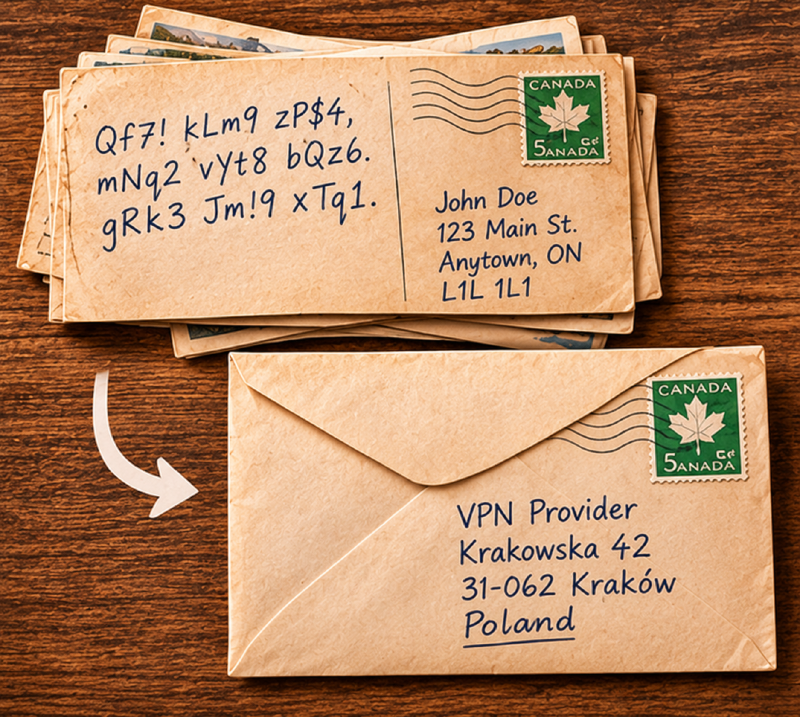
Now the mail delivery system can see that you’re sending something to a forwarding address, but they cannot see anything else. If the forwarding address is providing the same service for millions of people, then there’s no way to tell when your particular postcard is sent on to it’s intended address.
That’s how VPNs work. You contract with a service and you send some or all of your traffic encrypted to that service instead of directly to the websites you want to contact. Then the VPN service unencrypts the message, and passes it on to the website that you want to communicate with. You can still encrypt your traffic before it’s passed on to the VPN, and the VPN will encrypt it a second time.
This process is called an “Encrypted Tunnel”. It’s a extension of the “Connection” idea that we’ve already talked about. If you imagine your connection to the Internet to be like a giant, transparent pipeline, where everyone can see all the traffic that is flowing through it, then a VPN connection is like a smaller, pipeline, or tunnel, running inside it. Everyone can see that there is a tunnel there; they can see where it starts and ends, but they cannot see the data inside it or know where it is going.
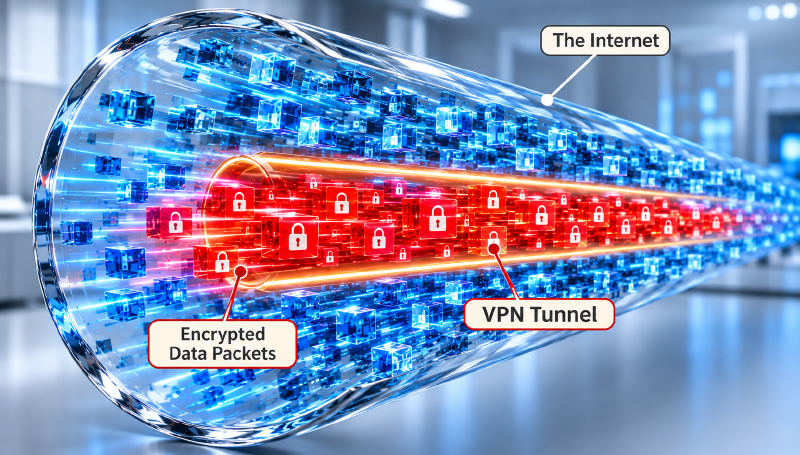
Of course there is no tunnel, and no construct even remotely like a tunnel. But the fact that all of the traffic is encrypted means that seems to behave like a tunnel that is private and goes directly from your computer to the VPN exit point. To the rest of the Internet, it looks like your traffic is coming from that VPN end point.
If you use a VPN and check your IP address from one of the services in the Internet that does this, it will tell you that your address is the VPN’s address. If your VPN exit point is in a different country, many websites will detect that and give you pages in that country’s language, or ads for that country. They might even let you access content that’s only available in that country.
How Firewalls Actually Work#
Anybody who has ever watched a TV show or movie with hackers gets the same, wrong, picture of how firewalls work.
We’re through the third layer of the firewall! 20 more minutes before we’ve cleared the next two and we’re in!
The word “firewall” itself is decieving. It makes you picture some kind of physical obstruction in the data path, and brute force can get you through it:

But it’s not like that at all.
Here’s a better way to picture it:

Here, the baby is the firewall. The pile of blocks on the left is traffic going in and out of your internal networks. The pile on right is the traffic to and from the Internet. The baby picks up the blocks from one pile and decides if it will throw it in the garbage, or put it in the other pile. The workman with the wheelbarrow and the postman with his bag can only pickup and drop off blocks in their own piles. They can’t influence the baby because it’s just a baby, and only does what its mother says.
And if they hurt the baby…well, then it’s not going to be moving any blocks, is it?
The blocks, of course, are the ~1500 byte network packets.
Silly as this is, this is how a firewall really works.
Traffic is Just Data#
From this analogy, you can see that network traffic is just data. Just like a bunch of wooden blocks, it has no agency at all.
You cannot batter down a firewall with data.
Theoretically, you could send some combination of data packets that could exploit some vulnerablity of a firewall that would cause it to let all traffic pass. I’ve never heard of that, though. And I imagine that any such vulnerablity would be big news and patched really quickly if it was found. So let’s consider that a long shot that we don’t need to actively worry about.
In fact, the only way that you can let your firewall be compromised, is by allowing an outside agent to connect to the configuration port of your firewall. Then they could conceivably log in and reconfigure your firewall.
Virtually all firewalls operate on the idea of “inside” and “outside” interfaces, and they are configured by default not to allow connections to the configuration port of the firewall from the “outside” interface. You might be able to change this, but it should be clear by now that this is not a good idea.
The other way that your firewall might be compromised is if you allow traffic through that could, as an example, establish a terminal session on a system on one of your internal subnets and from there connect to a managment session on your firewall. Most firewalls allow you to restrict managment sessions to specific addresses on your internal subnets, however.
A Firewall is a Router#
Every firewall is actually a router. This means that it has 2 or more network interfaces, and it “routes” the traffic between them.
Typically, every interface on a router has an address on a different subnet.
Decisions about how to route a packet usually involve two decisions in this order:
Is the destination for this packet on the same subnet as one of my interfaces? If so, then send it directly to its destination out that interface.
Use a table to determine the address of the next hop to forward this packet towards its destination. Send it to that address through the interface on the same subnet as that address.
That’s it. That table in decision #2 can actually be amazingly complex, but we won’t go into that here.
A firewall, on the other hand, has three decisions to make:
Do I allow this packet to pass?
Is the destination for this packet on the same subnet as one of my interfaces? If so, then send it directly to its destination out that interface.
Use a table to determine the address of the next hop to forward this packet towards its destination. Send it to that address through the interface on the same subnet as that address.
It should be clear that decision #1 is doing a lot of work for a firewall. That’s what we’ll talk about next.
Firewall Functionality#
Let’s look at the mechanisms that a firewall uses to make that first decision…
The Prime Directive: No Unsolicited Traffic from the Outside#
Just what the heading says:
The most important rule is just this: Anything that just appears at the outside interface without an invitation gets discarded.
You need to understand that there is crucial philosophical difference between a firewall set up to reject any and all incoming traffic and one that allows it, or some of it, in.
Setting up a blanket rule that says “No”, and sticking to it means that you never have to worry about an enormous category of potential security problems before they ever arise.
Now, if you are a company hosting your own public website, and you need to allow incoming traffic in order to do business, that’s an entirely different thing. Then you need to worry about the security of the web server, and you need to worry about the security of every other device that web server can reach. And so on, and so on, and so on. You need to do penetration testing. You need to patch everything every time somebody finds a vulnerablity. You need to worry about this constantly. But that’s the cost of doing business, so you have no choice.
If you’ve got a homelab, and if you’re doing normal homelab stuff, then you don’t want to go there. When your spouse hears about some brand new Internet horror and asks you, “Do we need to worry about this? How do you know we’re safe?”, then you can answer honestly that there is nothing to worry about. You didn’t go there.
And that means, NO PORT FORWARDING. I’m not going to even explain it here, because you shouldn’t do it. Especially not if you’re reading an introductory article like this.
Address Translation#
This is a useful concept to understand. It’s more of a router function than a firewall function, but it lays the groundwork for understanding a lot of firewall concepts.
Private IP Addresses#
If you’ve just unboxed the WiFi router that your ISP sent you and plugged it in, you’re probably using a subnet like 192.168.1.0/24, or 192.168.0.0/24. Pretty much every WiFi router ever made uses these. But why?
There is a specification published years and years ago called, “RFC 1918: Address Allocation for Private Internets”, that sets aside 3 subnets for private use. These are:
- 10.0.0.0/8
- 172.16.0.0/12
- 192.168.0.0/16
You don’t see 172.16.0.0/12 used very often, because the it’s a bit tricky to configure due to the “/12”. But the others are used commonly.
The thing that makes these subnets special is that they are set aside purely for the use of private networks. What this means is that you will never find a publicly accessible Internet address in any of these subnets. And that means that if you set your IPTV box to have IP address 192.168.1.73, then it will never collide with any server out there in the Internet with the same address.
And those are the subnets than everybody uses for their home networks. This is guaranteed to never cause problems.
But how does Internet traffic get to your IPTV box with a private address?
Your Home Network’s Internet Address#
If you are working on your laptop with address 192.168.2.17 and you browse to a site advertised to show your IP address, you’re not going to see 192.168.2.17. You are going to see the IP address that your ISP has assigned to your house.
So how does traffic from the Internet get from the Internet to your computer with a private address?
Your firewall does this for you. It’s called “Network Address Translation”, or just “NAT”. To understand it, you have to understand another concept called “Ports”.
Network Ports#
Your computer isn’t just doing one thing, it’s likely to have lots of processes on the go at any given time, and each of those processes might be talking to the network. Something is needed to allow the traffic for each of those processes to get to the right place.
Think of your computer as an apartment building. It has a single address for the building itself, and then each of the individual flats has a unit number. When you go to an apartment, you’ll usually see something like this:
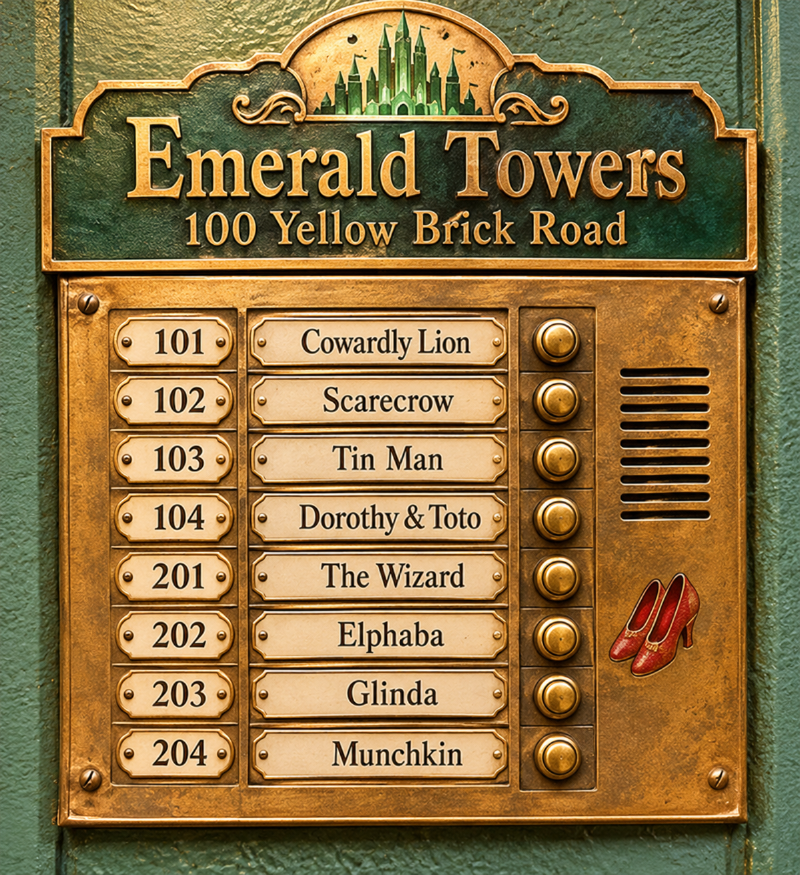
Now, if you wanted to send a postcard to the Wizard, you’d have to address with his unit number. Like this:

Ports are exactly the same thing, just a number that gets tacked on to the end of the address after a colon: 192.168.3.72:7865 is typical.
You use them all the time, even though you don’t see it. There are a whole set of “well known ports” that are typically used for particular services, and are the defaults for those services. For instance, port 80 is usually HTTP without SSL, while 443 is HTTP with SSL. Port 25 is SMTP (mail servers), and port 20 is FTP.
This means that when you type “www.somewebsite.com” into a modern browser, it’s probably going to go to “https://www.somewebsite.com:443” automatically.
And, by the way, when your browser sends out a request to a website, the return address that it uses will have some randomish port assigned to it. So if your IP address is 192.168.2.103, your request might have a return address of 192.168.2.103:53002. That way the response can get to the right process, and the right tab in your browser.
Ports at the Firewall#
Your firewall uses ports to handle address translation. Typically, your firewall will have one interface designated as “outside”, and it will have an IP address supplied by the modem that your ISP gave you. Just one address.
Behind the firewall, you’ll have all kinds of devices, each with its own IP address on whatever private address range you’ve set up for your home network.
Here’s what happens when your browser sends that request with the return address of 192.168.2.103:53002…
- A packet hits an internal interface of your firewall, and its routing tables determine that it needs to go through the outside interface to the internet.
- The firewall tracks the IP address and the port of the packet and stores them a table, along with unique port number for that packet’s address/port combination.
- The firewall changes the return IP address of the packet to the IP address of its outside interface, and changes the port to the one that it assigned in its table.
- The firewall sends the packet on to the modem.
- When the return packet comes, it will have the IP address of the outside interface of the firewall, and the port number that it generated.
- The firewall looks up that port number in its table, and retrieves the internal IP address and original port number.
- The firewall replaces the address and port with its stored values.
- The firewall sends the packet out the appropriate internal interface.
The end result is that your computer is able to communicate with the outside world without you having to worry about how your private IP address is routable from the outside world.
Stateful Inspection#
At the top of this article, I explained how the idea of a “connection” isn’t real, it’s just the way that TCP/IP networking seems to work to users.
Firewalls do a lot of their work by putting the connections back in.
Look at the NAT explanation above. When you think about it, when the firewall says, “I see that this address/port on the inside has sent out a packet and is probably expecting a response, so I’ll need to track it so that I can route the response back”, that’s the firewall establishing a “connection”.
You’ll also remember the “Prime Directive” earlier. And you’ll probably remember the weasel word I inserted: “Unsolicited”. What does that mean.
Think about it. If all Internet traffic is “Stateless”, and no traffic gets to come in from the outside, then how does a response from an outside web server get through the firewall?
The answer is that the firewall introduces the idea of a connection, and injects state into that connection. In the normal course of operations, the only inward traffic that gets through your firewall is traffic that is deemed to be part of one of those connections.
When a device on the inside of your firewall reaches out to a device on the outside of your firewall, the firewall registers that communication as the start of a connection, and then any incoming traffic will be evaluated to decide if it is part of that connection. There’s more to it than just remembering the source and destination addresses and ports, but you get the idea.
This is fundamental working model of most firewalls. They establish connections with state, and then inspect the network traffic in the context of that state - Stateful Inspection.
Firewall Rules#
You might be wondering how the firewall implements Stateful Inspection and how you control it.
Virtually every firewall uses tables of rules. These rules control whether or not a packet gets through the firewall and onto its destination.
Usually - not every time, but most often - rules are evaluated from the top of the table down to the bottom for each packet. The first rule that applies to a packet determines what will happen to the packet.
What is a rule? A rule has two components:
- Description of the packet.
- An action, usually “Pass” or “Block” although a rule may specify some routing information, too.
The description of the packet can include:
- The state
- The protocol
- The source address/port
- The destination address/port
- The interface
Using Rules#
Firewalls can vary in how they implement rules and their default actions. OPNSense, and I believe pfSense, has a rules table for every interface that you define, as well as some floating rules and built-in default rules that apply to all interfaces. Let’s look at how you would go about creating a rule set for a single interface…
The usual approach is to start with an empty table and put a “Block all packets” rule at the bottom of it. This becomes the default rule and means that any traffic which isn’t specifically allowed through will be blocked. It’s a good starting point. This is also the basis for “no outside traffic gets in”.
Above this rule you start to describe various types of packets that you explicitly want to be allowed to pass, or that you want blocked, and you add rules for them. Organize the rules such that the ones that override others are at the top. This means that the exceptions go at the top, and the rules tend to get less and less specific as you go down the table.
Let’s say you decide that you’re not trying to restrict access from everyone’s laptop and phone going out to the internet. So you create a new rule that allows all traffic from inside addresses to go outbound to anywhere in the Internet. And you put that new rule right above that “Block all packets” rule.
Then you realize that you never want the streams from your cameras going out to the Internet. So you add rules that block outgoing traffic from the addresses that correspond to your cameras. You put those rules on the top. You might have one rule per camera, or you might be able to put all of the camera addresses into a group, and just have one rule for the group.
But there have been a lot of porch pirates in your neighbourhood, and the local police have asked people with doorbell cameras to stream them to their server to monitor them in real time. So you create a rule that allows just that one camera to stream to that particular police server, and you put that one on the top.
Now, when a packet hits the firewall, the following evalutaions happen:
- The first rule asks if this is from the doorbell camera going to the police server. If so, the packet passes and you’re done evaluating rules.
- Then it asks if this is coming from one of the cameras. If so, it gets blocked, and you’re done evaluating rules.
- Finally, it asks if this packet is coming from the inside. If so, then it passes and you’re done evaluating rules.
- If all of these rules fail to trigger an action, then the last rule blocks the packet and you’re done.
That’s the way it works.
Deep Packet Inspection and Intrusion Detection#
Typically, Stateful Inspection is fairly superficial. It looks at the timing of packets, the addresses and ports, and the protocols used. It is possible, however, that a outside party could use techniques to inject themselves into a connection, or a connection may simply be to a malicious outside party. Most firewalls provide some ability to employ something called “Deep Packet Inspection”.
With DPI, your firewall looks at the actual contents of the packets and matches them against known signatures of dangerous or malicious traffic. Generally speaking, DPI is an integral part of an “Intrusion Prevention System”.
Intrusion Detection Systems, on the other hand, watch network traffic for patterns of suspicious behaviour. For instance, you might be blasted with a series of probes against sequential port numbers on your firewall and that might indicate that some malicious operator was attempting to locate a known vulnerability.
With OPNSense, DPI, IDS and IPS are typically implemented through optional plugins. CrowdSec is an example of these.
Protecting From Internal Threats#
The truth is that you probably have lots of devices on your internal networks that you really don’t know that much about. This could be the laptop that your brother-in-law brought with him when he visited, or it could be a smart light bulb that you bought off Temu.
These devices constitute a real threat to your home network. There have been articles lately about smart TV’s using AI to subvert other devices on their owner’s networks to take over microphones and other hardware. And who knows what viruses your brother-in-laws laptop has on it?
A firewall is a key element in containing these threats. It will allow you to divide your internal network up into several subnets, and then it can control the flow of traffic between them. Put devices that you want to protect from other devices, or that might threaten other devices together on their own subnets.
Your brother-in-law’s laptop? Create a “Guest” subnet, and set up your WiFi with a “Guest” SSID that connects to it. Give devices on that “Guest” subnet ZERO access to any other devices in your network. Allow them only to go out to the Internet, and nothing more. Don’t even give them access to your DNS servers.
All those smart devices and IOT gizmos? Create a separate subnet for them, give them no access to any other internal subnet, and strictly limit their access to the Internet. Then the only things they can hack are each other.
With most firewalls, each interface can have its own rule table. This makes it easy to group devices together and create default rules for them.
Accessing Your Services from Outside#
The ability to access your services when you are out and about, and not connected to your home WiFi can be really important. What’s the point of installing Immich to replace Google Photos if you cannot access it when you’re away from home?
But how do you do it?
And how do you do it without breaking that “Prime Directive”.
The answer is to us a VPN. There are two ways to go about this, and they both involve WireGuard, which is the easiest VPN technology to use.
The first is to set up a “Road Warrior” VPN. This is a VPN hosted by your firewall that uses SSL keys to validate remote clients. Then, those remote clients can access internal devices based on a rule set.
The second is to use TailScale. TailScale also uses WireGuard, but installs it directly on your internal devices. These devices then generate a VPN connection outward, through your firewall, to the TailScale servers. You have an account with TailScale, and you control access to these VPNs through that account. Then, on your remote devices you install the TailScale client software and connect it to your TailScale account.
TailScale is almost trivially easy to set up and get running, and the way I’d recommend everyone start out exposing services to the outside. The nice thing about TailScale is that it establishes the VPN from the inside of your firewall going out. So you can enable it simply be having a rule that allows outgoing WireGuard traffic from an internal interface. No need to allow actual outside access.
VPN Hygiene#
Regardless of which approach you take, it’s undeniable that you are compromising your security to some degree. It’s probably negligible, but it’s prudent to deploy it without giving wide open access to your internal network.
First, deploy a Reverse Proxy Server like NGINX, Caddy or NPM inside your DMZ. A “DMZ” is a subnet that is intended for access from the outside world. Consider that any device deployed in it might be compromised at some time. Set up rules that deny access to any other subnet on your internal network by default.
Set up a proxy host for every service that you want to expose via VPN. Configure it with an SSL certificate and enforce secure access.
Every proxy host requires that you specify both the address and the port of the service that it is proxying. Create a firewall rule to allow access from your reverse proxy server to that exact address and port. Do this for each service that you wish to have available from outside.
Of course, the default rule for your DMZ needs to be “Block all packets”. This will ensure that only traffic from proxy hosts that you enable are allowed access to specific services in your homelab.
Set up some form of “Split Horizon DNS” so that any connections to your reverse proxy server from outside will be via the WireGuard VPN, while internal connections go directly to the reverse proxy server.
Now, all of your external connections via TailScale or WireGuard are going to terminate at your reverse proxy server located in a very restrictive DMZ subnet, and all of those connections are going to use SSL.
Assume that any device that you have exposed to incoming traffic, no matter how well guarded, might be compromised. Configure your network such that any compromised device can do as little damage as possible.
I realize that these instructions are more than a little vague. Detailed instructions for setting up SSL secured proxy hosts in a DMZ with split horizon DNS and TailScale will be the subject of its own article in the future.
Conclusion#
As I have been writing this article, news broke that supermarket freezers have been hacked again, this time in Belgium and Sweden. People seem to be focusing on the fact that the password was apparently set to the current date, but I’m mystified as to why an internal system like this was exposed to the public Internet at all.
For homelab owners, this should be treated as a cautionary tale. Security shouldn’t just be an afterthought, and you need to understand how network communications work in order make good decisions.
Use a firewall. For myself, I purchased an old HP T740 Mini system with minimal memory and SSD. I bought this model because is supports a single PCI card, which allowed me to install a dual NIC card, giving me 3 Ethernet ports. It cost me about $130 CAD, plus another $20 or so for the network card. I run OPNSense on it, which is a very capable and free firewall. Even such a modest system is more than adequate to run all of the firewall functions that I need. It struggles a bit if I try to use deep packet inspection and IPS plugins, but I’m not convinced I need them.
The real cost of security is always effort and convenience. You cannot avoid this cost. It takes effort to set up a firewall, and to organize your network and the firewall rules to lock things down. It inconveniences everyone that uses services from your homelab when they have to install TailScale, or use passwords to access those services. The trick is to find the right spot, where the effort and inconvenience is tolerable while the compromises to security remain acceptable.
While the images in this article are clearly AI generated, the words are not. Not just the ideas, but the actual sentences were composed by me, a real human being. If you want an explanation from AI you can just ask a chatbot yourself.